
MICROSOFT 365
Microsoft Puts Copilot Back on PCs as Paid Deals Stall
Microsoft resumed Microsoft 365 Copilot auto-install on commercial PCs, a default that feeds one Copilot app while paid licenses stall over SharePoint risk.

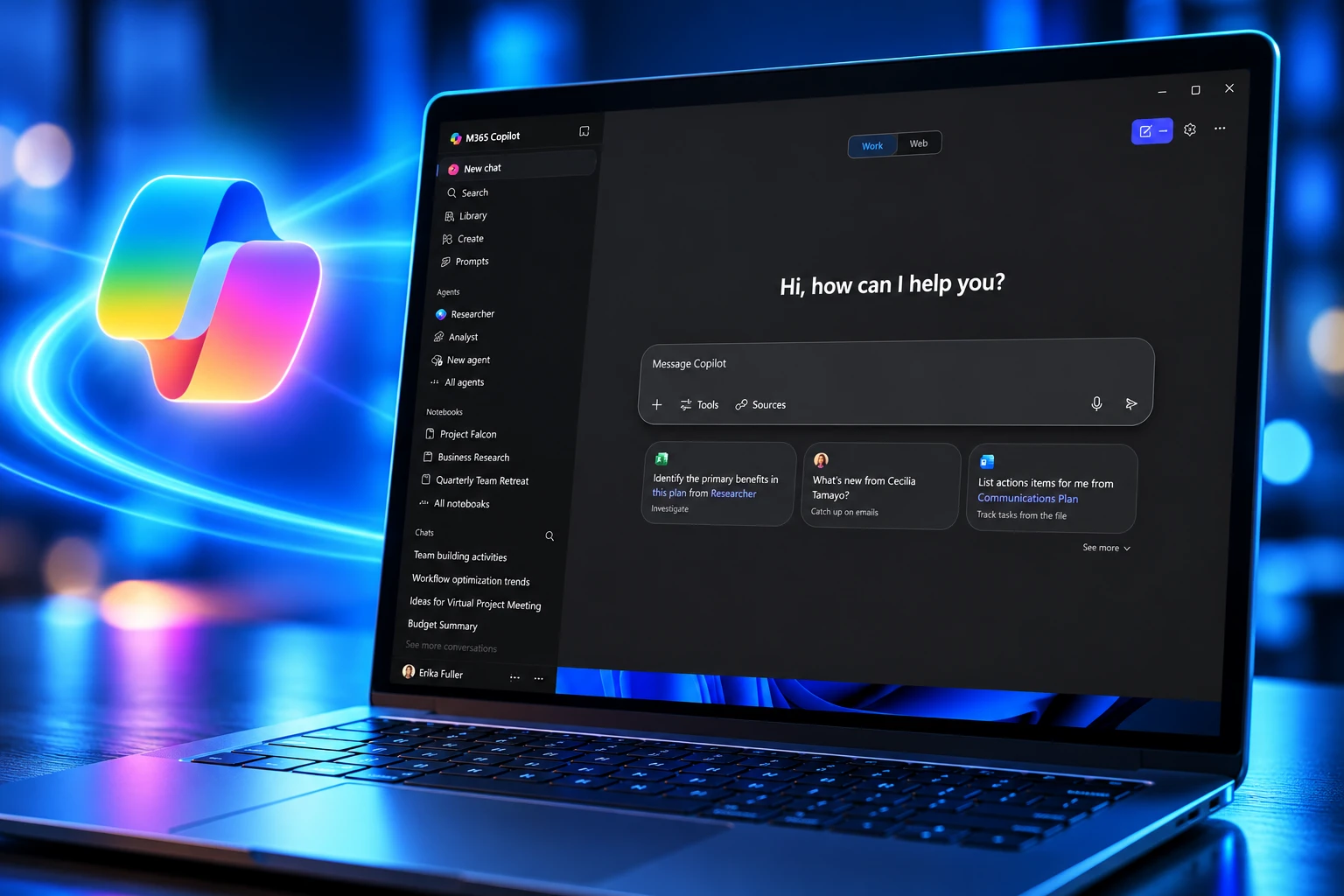
Microsoft is again auto-installing the Microsoft 365 Copilot app on commercial Windows PCs, a push it paused in March after bugs and backlash. Message Center notice MC1152323 said the restart ran from mid-June 2026 and would finish by mid-July, on machines that already have Microsoft 365 desktop apps.
The app is also the missing piece in April’s uninstall policy. That switch only removes consumer Copilot when the Microsoft 365 Copilot app is already on the device.
Microsoft Put Copilot Back Through the Office Updater
The first automatic wave ran from October 2025 into March 2026. Microsoft then stopped it, citing a technical issue, and told admins it would say when the work resumed. Existing copies stayed. On June 15, 2026, MC1152323 was updated: the company would resume the install on eligible Windows PCs, enabled by default, with no user prompt.
Microsoft’s line in that notice was that the change “simplifies access to Copilot and ensures users can easily discover and engage with productivity-enhancing features.” It also told tenants there were “no compliance considerations identified.” The notice, first published on September 12, 2025, expired on August 28, 2026. The behavior did not expire with it.
Microsoft’s current deployment guide, last updated on August 18, 2026, still says Windows devices with the Microsoft 365 desktop apps automatically install the Microsoft Copilot app in the background. The payload rides the Office updater, not the Microsoft Store, so Store blocks do not catch it.
THE COPILOT INSTALL CALENDAR
- October 2025: Automatic install of the Microsoft 365 Copilot app begins on eligible Windows PCs with Microsoft 365 desktop apps.
- January 21, 2026: Microsoft detects bug CW1226324, Copilot Chat summarizing confidential mail in Sent Items and Drafts.
- March 2026: Automatic install is paused. Microsoft cites a technical issue. Copies already on disk stay.
- April 14, 2026: RemoveMicrosoftCopilotApp ships in KB5083769 as Message Center item MC1289507.
- Mid-June to mid-July 2026: Automatic install resumes on Current Channel and Monthly Enterprise Channel devices.
- June 26, 2026: Italy’s competition authority opens a consumer case on Microsoft 365 pricing after Copilot and Designer were folded in.
The June restart was never aimed at every Windows PC. It targeted commercial Microsoft 365 desktops on two fast Office channels, and it treated the app as already on by default unless an admin found the off switch.
A Different Copilot App, a Different Pipe
Windows now carries more than one Copilot. The consumer Microsoft Copilot app arrived through Windows Update and the Store. The Microsoft 365 Copilot app arrives with Office. April’s removal policy is written for the first one, and it is written to prefer the second.
MC1289507 said the new RemoveMicrosoftCopilotApp setting lets admins uninstall Copilot “in a non-disruptive way.” It applies only when three things are true at once: the Microsoft 365 Copilot app is also installed, the user did not install consumer Copilot, and that consumer app was not launched in the last 28 days. If any test fails, nothing is removed. Users can put the consumer app back from the Store.
That is why the June default matters more than the April headline. The policy that “removes Copilot” needs the Office Copilot app sitting on the PC first. Force-installing that app is how Microsoft gets to a single Copilot surface. Later docs now say the Microsoft 365 Copilot app is called Microsoft Copilot, the same name as the consumer client, which makes the overlap easier to miss in the Start menu.
TWO COPILOT APPS ON ONE PC
| App | How it lands | April removal policy | June auto-install |
|---|---|---|---|
| Consumer Microsoft Copilot | Windows Update and Store | Can uninstall if all three tests pass | Not this wave |
| Microsoft 365 Copilot app | Office Click-to-Run updater | Must already be present for removal to fire | Default on for eligible commercial PCs |
Clearing consumer Copilot under those rules does not turn off Copilot inside Word, Excel, Outlook, or Teams. Those entry points follow licenses and cloud policy, not the Start-menu icon.
Admins Must Clear a Hidden Automatic-Install Box
The off switch is real, and it is easy to miss. Microsoft tells admins to sign in to the Microsoft 365 Apps admin center, not the main Microsoft 365 admin center. The path is Customization, then Device Configuration, then the Modern Apps settings tab. Select Microsoft Copilot app and clear “Enable automatic installation of Microsoft Copilot app.” Save. Microsoft warns people they often open the wrong portal.
Devices need Microsoft 365 Apps Version 2511 or later. Semi-Annual Enterprise Channel PCs do not get the automatic install. If the app is already there, Microsoft says a second pass does not create a duplicate. A user who uninstalls it is not supposed to see it come back on its own; Microsoft’s FAQ says the automatic installation happens only once.
WHO DOES NOT GET THE DEFAULT PUSH
- EEA tenants: Microsoft disabled this automatic install for customers in the European Economic Area.
- Government clouds: GCC, GCC High, and DoD are left out of the same note.
- Semi-Annual Enterprise Channel: Those devices skip the background install even outside Europe.
- Older Office builds: PCs below Version 2511 are not in the automatic path.
- Tenants that unchecked the box: The setting is tenant-wide once it is saved.
Home users on a personal Microsoft 365 plan are not the audience for this Office-updater wave. The commercial default is the point. The public argument on X treated the EEA carve-out as proof Microsoft will not run this default where bundling rules are strict, and that reading matches the documentation.
The Paid Copilot License Wave That Did Not Arrive
Putting the app on a PC is not the same as turning on Microsoft 365 Copilot, the paid assistant that reads mail, files, and meetings. CoreView’s 2026 State of Microsoft 365 Security report, drawn from 279 IT and security leaders at firms with 1,000 or more staff (86 percent of them in the United States), found that 66 percent delayed or cancelled Copilot because of what it might pull from SharePoint. Another 73 percent said they were already worried AI was surfacing confidential information inside the company. Only 27 percent were comfortable enough to roll it out.
COPILOT LICENSE REALITY IN LARGE TENANTS
- Delayed or cancelled: 66 percent of surveyed organizations paused or stopped a Microsoft 365 Copilot deployment.
- Internal exposure fear: 73 percent worried AI was already showing confidential data.
- Went ahead: 27 percent said they were comfortable rolling Copilot out.
- Who answered: 279 leaders, every org at 1,000-plus employees, second year of the study.
Those 66 and 27 percent figures do not cover everyone in the sample, and they should not be added as if they did. The split is still ugly for a flagship add-on. CoreView’s example is an employee asking who is on a layoff list, then watching Copilot find an HR file that was never locked down. The file was already reachable. Copilot makes it easy to ask.
Two-thirds of enterprises have delayed or cancelled Copilot. It is the most senior leaders who are pausing, because they can see exactly what AI will surface, a decade of sharing links and permissions nobody cleaned up.
Simon Azzopardi, chief executive officer, CoreView
So the June install puts a Copilot front door on desks at the same time most large tenants in that survey will not buy the product behind it. Unlicensed users do not magically get the paid assistant. They get an app, and in many tenants a prompt to talk to IT.
Who Still Avoids the Auto-Install
Europe is the cleanest carve-out in Microsoft’s own pages. EEA customers are not in this automatic install. That is a different legal track from Italy’s consumer case, which is about price and disclosure, not the Office updater.
On June 26, 2026, the Italian Competition Authority opened an investigation into the Microsoft 365 price increase against Microsoft Ireland Operations Ltd. and Microsoft S.r.l. The file is PS13129. The authority said information looked fragmented, and that Copilot and Designer had been integrated without making that clear enough. It also said consumers appeared to land, by default, on a new higher-priced plan unless they withdrew.
This information appears to have been provided in a fragmented manner, without making it sufficiently clear that the subscription service had been integrated with the “Copilot” and “Designer” artificial intelligence services. Moreover, it seems that consumers were placed, by default, on a new subscription plan at a higher price, unless they exercised their right of withdrawal.
Italian Competition Authority, PS13129 press release, June 26, 2026
A Microsoft spokesperson said the company is committed to complying with Italian consumer law and will cooperate in the preliminary investigation. That probe is not a ruling. It is the same design argument in another market: Copilot arrives as a default, and the customer has to notice and decline.
Government tenants sit outside the commercial auto-install too. GCC, GCC High, and DoD are named in the same Learn note as the EEA. Admins in those clouds still have Intune, Configuration Manager, and the stand-alone installer if they want the app on purpose.
A Confidential-Mail Bug Helped Stop the First Wave
The March pause did not come from nowhere. In February, Microsoft confirmed a Copilot Chat defect tracked as CW1226324. It had been picking up mail with a confidential label from Sent Items and Drafts, then summarizing that mail even when DLP was supposed to keep it out of the model. Microsoft said it spotted the problem on January 21, 2026, and began shipping a fix in early February. A spokesperson said the bug did not give anyone access to information they were not already allowed to see. It still turned labeled mail into chat text.
That is the fear CoreView’s leaders are pricing in, only at SharePoint scale. Sensitivity labels and DLP are supposed to be the fence. When the fence fails in Copilot Chat, a Start-menu app that “simplifies access” is a harder sell. The European Parliament’s IT team had already told lawmakers it was blocking built-in AI features on official devices over confidential correspondence.
Microsoft later tightened Purview so some connected experiences, including Copilot, could be blocked from analyzing labeled files in Word, Excel, and PowerPoint. That control is for commercial customers who have a Purview license. It is not a substitute for the Apps admin center checkbox, and it does not undo an install that already landed.
The June restart still went out on Current Channel and Monthly Enterprise Channel. Microsoft’s August guide still describes the background install as normal for those PCs. New devices that pick up Version 2511 will keep getting the app unless someone cleared the box, or unless they sit in the EEA, a government cloud, or Semi-Annual Enterprise Channel.
Frequently Asked Questions
Does Microsoft Reinstall Copilot After a User Uninstalls It?
No. Microsoft’s Copilot app FAQ says the automatic install with Microsoft 365 Apps is a one-time event. If a user removes the app, that person has to reinstall it. The FAQ also says the auto-installed client is the same app Intune, Configuration Manager, and the stand-alone.exe would place, and that a second install attempt does not create another copy for the same user.
What Microsoft 365 Apps Version Is Required for Auto-Install?
Devices need Microsoft 365 Apps Version 2511 or later. Version 2511 shipped to Current Channel in early December 2025 and to Monthly Enterprise Channel in January 2026. The automatic path is limited to those two channels. Semi-Annual Enterprise Channel is out of the background install even when the build number is new enough.
Does the Copilot App Auto-Install on Mac?
The automatic Microsoft 365 Apps path is written for Windows. Microsoft still offers a desktop Copilot app for Mac as a download, plus iOS and Android clients and a web app at m365.cloud.microsoft, but those do not ride the Windows Office updater described in MC1152323.
Can Admins Still Deploy Copilot If They Turn Auto-Install Off?
Yes. Turning off the Modern Apps checkbox only stops the background Office install. Microsoft still documents Intune, Configuration Manager, Group Policy, and a quiet.exe installer from the Microsoft 365 content network for tenants that want the app on chosen devices, including Semi-Annual Enterprise Channel PCs that never got the default push.

Windows 11 26H2 Turns Settings Backup On by Default

The Gears 2 PC Port Epic Refused to Ship

Ghost Recon Wildlands Returns at 4K as a Catalog Product

Waterpark Simulator Keeps the $12.99 Price After 1.0

Nurix Puts NuPlay on Microsoft Marketplace to Reach Azure Buyers

Warzone Leaves Xbox One and PS4 After Season 06

Microsoft AI Was Set Free to Build Its Own Frontier

Microsoft IQ Turns Workplace Data Into a Metered Agent Brain

Xbox Games Showcase 2026 Split the Catalog in Two

Nadella Banned Addiction Talk While Scout Kept Heartbeat
-
 NEWS5 months ago
Warzone Leaves Xbox One and PS4 After Season 06
-
 NEWS5 months ago
Microsoft AI Was Set Free to Build Its Own Frontier
-
 MICROSOFT 3655 months ago
Microsoft IQ Turns Workplace Data Into a Metered Agent Brain
-
 NEWS5 months ago
Xbox Games Showcase 2026 Split the Catalog in Two
-
 MICROSOFT 3655 months ago
Nadella Banned Addiction Talk While Scout Kept Heartbeat
-

 NEWS5 months ago
Modern Warfare 4 Splits Its Audience Before the October Launch
-

 NEWS5 months ago
Infinity Ward Bets Modern Warfare 4 on a Paid DMZ
-

 NEWS5 months ago
Dragonwilds Hits Xbox, but Steam Saves Stay Put