
NEWS
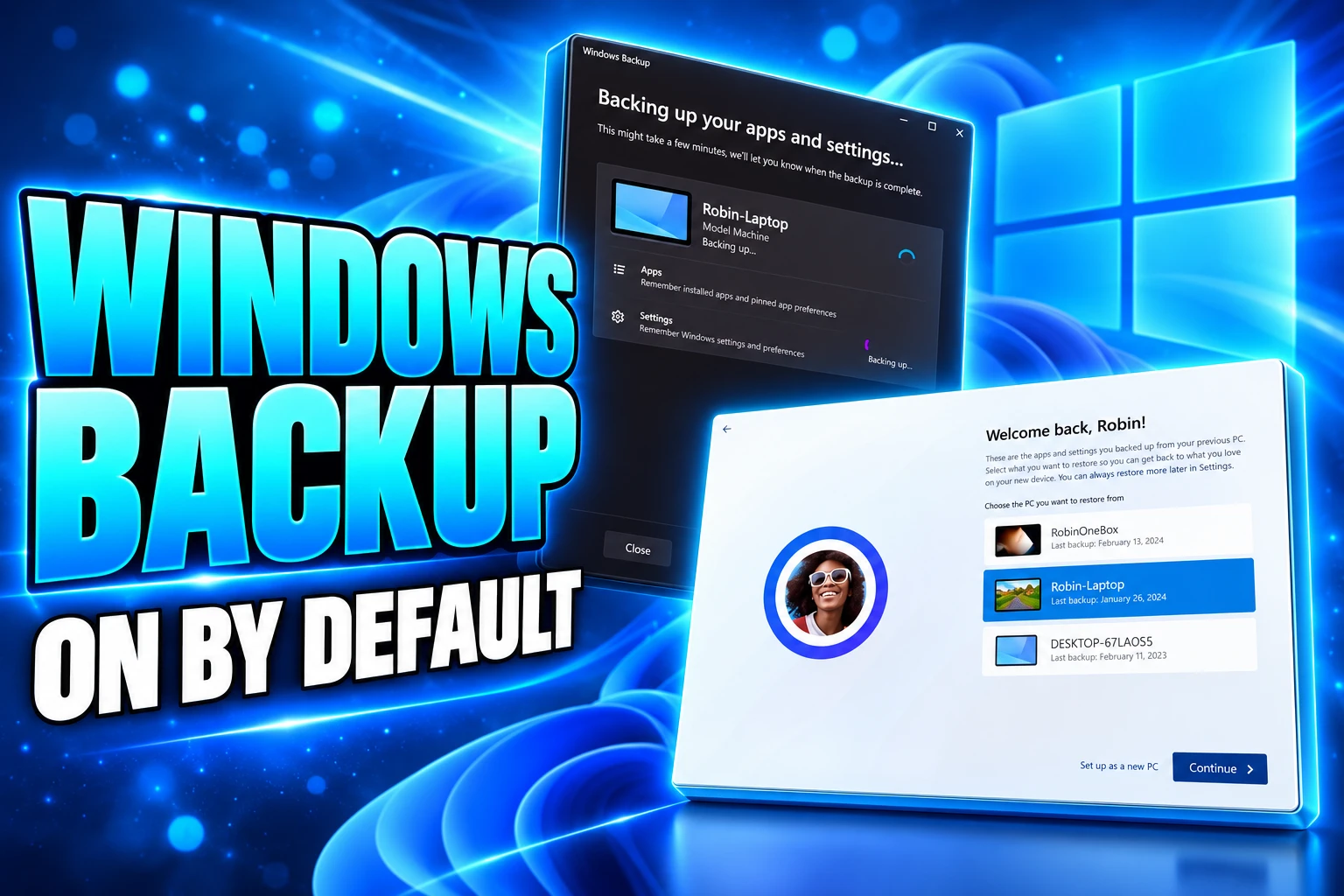
Windows 11 26H2 Turns Settings Backup On by Default
Windows 11 26H2 turns settings backup on for eligible Entra PCs, while restore stays off and files still sit outside Microsoft’s new default.

Windows 11 26H2 now turns Windows settings backup on by default for eligible Entra-joined PCs, unless an administrator already set the policy. Restore does not come with that flip. The job still copies settings and a Microsoft Store app list, not documents.
Microsoft shipped version 26H2 on September 29, 2026 as a small switch on the 24H2 and 25H2 code, then confirmed the backup default on October 1. The interesting change is the idle policy state, not a new backup engine.
The Switch That Flipped When 26H2 Landed
Microsoft’s product docs now say Windows settings backup is enabled by default for eligible devices starting with version 26H2. Any policy an admin already set to on or off still stands. The new behavior hits devices whose Enable Windows Backup policy is still Not Configured.
That idle state used to mean off. On an eligible 26H2 PC that is Microsoft Entra joined or Microsoft Entra hybrid joined, the same blank now means the scheduled backup can start. Users sign in with an Entra ID account. The feature’s older name, Windows Backup for Organizations, is still on some policy screens while Microsoft retitles them to Windows settings backup and restore.
The company’s Windows Update account put it more broadly on October 1, 2026: “Your Windows settings, backed up by default.” The product rules are narrower than that line. The default still applies only to those Entra-joined or hybrid-joined PCs, and only when no one has set the policy.
Your Windows settings, backed up by default. ☁️
With Windows 11, version 26H2, Windows backup settings are now on by default, making it easier to restore your settings when you move to a new or reset PC.
Learn more: https://t.co/Zo9BRH6Upp
— Windows Update (@WindowsUpdate) October 1, 2026
If the backup policy is still Not Configured, that silence is now the trigger. Leaving the control untouched is a decision, even when nobody in the tenant ever opened it.
Restore Stays Off Until Someone Turns It On
Miranda Leschke of Microsoft wrote in July that a recoverable list of settings and Microsoft Store apps was becoming a new resilience baseline for managed PCs. An editor’s note on that post, dated September 29, 2026, says the default is now generally available on eligible devices. The same post is blunt about the other half of the product: restore is unchanged and is not enabled by default.
Backup and restore are separate switches. An eligible 26H2 device can start uploading settings while the setup-time restore page stays hidden. In Microsoft Intune, Show restore page under Devices, Enrollment, Windows Backup and Restore is a tenant-wide control. It is meant to catch a PC at enrollment so the page is present during the out-of-box experience. Changing that enrollment toggle later does not rewrite devices that already enrolled. The enrollment control needs an Intune service administrator or a global administrator.
Admins can also turn on Enable Windows Restore after enrollment through the Settings catalog. That path refreshes on the usual policy cycle. The WindowsBackupAndRestore cloud service provider can set EnableWindowsRestore to true, and that CSP is not in Group Policy. Autopilot restore during setup needs user-driven mode. Self-deploying profiles are out.
Out-of-box restore also needs a Microsoft Entra joined PC, not a hybrid-joined one, plus at least one backup profile and the same work or school account that created it. First sign-in restore, on later 24H2 and 25H2 builds, can run on Entra joined or hybrid-joined devices after enrollment. Hybrid shops can therefore start cloud backups under the 26H2 default and still lack the setup-time restore path unless they turn that second control on.
Windows Backup for Organizations is changing how device refresh works. Pressure tested inside Microsoft on a global scale, it enables Microsoft Store apps and user settings to move seamlessly with our people and free IT teams from the heavy lifting of device reimaging. The result is a simpler, more resilient experience.
Brian Fielder, Vice President, Microsoft Digital, Windows IT Pro Blog
That refresh story only closes if someone also enables restore, and if the user’s files already live somewhere else. The default-on change does not do that work on its own.
What Windows Settings Backup Saves
Microsoft’s own FAQ says the feature does not back up user data. It is built to copy supported Windows settings and the list of installed Microsoft Store apps. For documents, Microsoft points admins to OneDrive. Win32 installers, line-of-business apps, per-app settings, and Microsoft Edge favorites sit outside it. Edge still needs its own enterprise sync.
Once the backup policy applies, a scheduled task runs every eight days. A user can also open the Windows Backup app and tap Back up. If IT has turned backup or roaming on, the user can still clear Remember my preferences or Remember my apps. If neither backup nor roaming is on, those toggles stay greyed out.
BACKUP VERSUS A FILE BACKUP
| Item | In the 26H2 default | What actually happens |
|---|---|---|
| Supported Windows settings and preferences | Yes | Copied on the eight-day task and on a manual Backup app run |
| Microsoft Store app list | Yes | A manifest, then reinstall from the Store, not a copied package |
| User files and folders | No | Microsoft tells admins to use OneDrive |
| Win32 and line-of-business apps | No | Intune, Configuration Manager, or another deploy tool still has to push them |
| App settings and Edge favorites | No | Edge needs enterprise sync; other app settings are out of scope |
Desktop wallpaper is picky. Images stored under %windir%\Web\ are skipped on purpose. User or admin wallpapers restore only when they are not those system files and when OneDrive Pictures folder sync is on. A new PC can look familiar in the taskbar and still miss the background people notice first.
Where the Backup Data Lives
User-specific settings count as personal data. In the public cloud, Microsoft maps the country or region chosen at tenant creation to an Exchange Online geo, and the feature follows Exchange Online multi-geo if the tenant already uses it. Wallpaper and lock screen images can sit in OneDrive when the tenant has that subscription. Backups do not travel to another Entra tenant.
The default-on net is smaller than a fleet-wide Windows Update banner. Leschke’s post lists four gates that all have to be true. Devices outside that list keep the old off-by-default behavior, including PCs still on supported Windows 11 versions before 26H2, with a note that 26H1 devices pick up the same default on the next feature update.
WHO GETS THE NEW DEFAULT
- The build: The PC has to run Windows 11, version 26H2 or later.
- The identity: The user signs in with Microsoft Entra ID on an Entra joined or Entra hybrid joined device.
- The policy: Enable Windows Backup is still Not Configured; an explicit on or off value wins.
- The region: The device is not in a country or region covered by the EU Digital Markets Act.
- The cloud: The tenant is not in a sovereign or restricted cloud, and the feature is not offered for GCCH or China.
The DMA carve-out is written clearly in that July baseline post. The Learn overview’s cloud section names GCCH, sovereign clouds, and China, and does not repeat the DMA sentence. Admins who read only the overview can miss a limit that Microsoft already published on the IT Pro blog. Privacy-sensitive and sovereign fleets stay off by default. Everyone else with a blank policy should treat 26H2 as the start of an upload, not as a no-op enablement package.
Folding Enterprise State Roaming Into the Same Policies
Starting in July 2026, Enterprise State Roaming management moved into Windows settings backup and restore. Admins used to flip ESR in the Microsoft Entra admin center. That portal control is gone. The settings ESR can roam have not been rewritten; the console has. Licenses such as Microsoft 365, Enterprise Mobility + Security, Microsoft Entra ID, and Windows E3 or E5 still sit behind roaming.
Microsoft’s ESR documentation says that if a tenant does nothing, Windows will honor existing ESR plus Group Policy or MDM roaming controls for one year, with GPO or MDM first in line. After that year, ESR stops until backup and restore policies are in place. A company that never used ESR and does not want settings or Store lists in the cloud can leave the new default alone only if it also sets an explicit disable. The management move and the 26H2 default now point at the same policy surface.
Roaming and backup are still different jobs. Roaming is per user and tries to keep settings aligned across the devices that user signs into. Backup is per device and is meant for a welcome-back pass on a replacement PC. Collapsing both onto one policy family makes a blank Intune catalog much harder to ignore.
Intune, Group Policy, and the Opt-Out
Microsoft’s recommended path is to leave eligible devices on. The opt-out is an explicit disable through Intune, Group Policy, or another MDM. Setting the policy to enabled today does the same work as the new default, with a cleaner audit trail and the option to aim it at specific users. Restore stays a separate decision in every case.
In Intune, the backup control is a Settings catalog item: Administrative Templates, Windows Components, Sync your settings, Enable Windows Backup. Group Policy uses Computer Configuration, Administrative Templates, Windows Components, Sync your settings, Enable Windows Backup. The MDM URI is./Device/Vendor/MSFT/Policy/Config/SettingsSync/EnableWindowsbackup, as a string set to <enabled/> when backup should run. Mixing overlapping tools on the same setting is a good way to lose the fight.
Backup also fails if certain older policies are Disabled: EnableActivityFeed, PublishUserActivities, and UploadUserActivities under OS Policies, plus EnableCDP and AllowConnectedDevices. Those have to stay off the Disabled pile or the eight-day task never runs, default or not.
WHAT THE POLICY STATES MEAN
| Policy or function | Before Windows 11 26H2 | On an eligible 26H2 device |
|---|---|---|
| Backup policy Not Configured | Backup stays off | Backup turns on |
| Backup policy Enabled | Backup runs | Backup keeps running |
| Backup policy Disabled | Backup stays off | The disable still wins |
| Restore | Off until an admin enables it | Still off until an admin enables it |
Pooled VDI, reset-on-logoff desktops, and Windows 365 Flex shared Cloud PCs should be filtered out of both backup and restore. In those pools the image or the session dies at logoff, so a first-sign-in restore is discarded unless a profile container such as FSLogix already owns user state. Persistent Cloud PCs can use first-sign-in restore. Shared or userless devices are a miss for a per-user backup profile.
24 Months of Support Come With the Same Package
John Cable, vice president of product management for Windows servicing and delivery, said version 26H2 is delivered as an enablement package for PCs already on 25H2 or 24H2. Those three versions share a servicing branch, so much of 26H2 was already on disk in monthly updates, waiting for a master switch. Cable also said features that shipped disabled by default in 25H2 can come on in 26H2. Settings backup is the one that changes where user settings go.
The switch Microsoft documents as the KB5121794 feature update package needs a current 24H2 or 25H2 PC and, before that, the September 22, 2026 preview KB5124010 (OS build 26100.9546) or a later cumulative update. Installing 26H2 resets the support clock: 24 months for Home and Pro, 36 months for Enterprise and Education. Commercial teams still get a staged rollout, Autopatch, and the usual rings. Cable asked them to pilot before a broad push.
FROM THE JULY NOTICE TO GENERAL AVAILABILITY
- July 1, 2026: ESR management finishes moving out of the Entra admin center and onto backup and restore policies.
- July 6, 2026: Microsoft says eligible 26H2 devices will get backup on by default, first in the Insider Experimental channel.
- September 22, 2026: KB5124010 preview (OS build 26100.9546) lands as a prerequisite for the enablement package.
- September 29, 2026: Windows 11 26H2 reaches general availability and the backup default applies to eligible devices.
- October 1, 2026: The Windows Update account confirms that settings backup is on by default in 26H2.
Microsoft’s 26H2 release health page still lists three mitigated problems that also showed up on 24H2 and 25H2: USB Audio Class 1.0 devices that throw Code 10 or go silent, Credential Guard machine accounts that lose their Active Directory secure channel, and some virtual desktops that sit on a black screen after sign-in. They are not upgrade blockers. They are a reason to keep 26H2 in a ring long enough to see whether a quiet policy flip is the only surprise.
A 26H2 install can look like a monthly patch and still start sending settings into Exchange Online. Restore stays a second ticket. Files stay a OneDrive problem. The enablement package is already in Windows Update for 24H2 and 25H2 PCs; Not Configured is no longer a safe blank.
Frequently Asked Questions
Does Windows Settings Backup Copy Files and Installed Apps?
No. The feature stores supported Windows settings and a Microsoft Store app list, then reinstalls those Store apps from the Store rather than copying their packages. Win32 apps, other desktop installers, and per-app settings are out of scope. Wallpaper files under %windir%\Web\ are skipped, and a custom background needs OneDrive Pictures folder sync before it will come back.
Is Restore Turned On Automatically in Windows 11 26H2?
No. Only backup changes default on eligible devices. The Intune enrollment restore toggle is tenant-wide, needs an Intune service administrator or global administrator, and does not rewrite PCs that already enrolled. Group Policy cannot set the OOBE restore CSP, so shops that still live on GPOs have to use MDM for the setup-time page.
Where Does Microsoft Store the Backup Data?
In the public cloud, settings land in the Exchange Online geo that matches the country or region chosen when the tenant was created, including Exchange Online multi-geo when that is already on. Microsoft classifies those user-specific settings as personal data and points to its Products and Services Data Protection Addendum. Independent crypto audits sit on the Service Trust Portal. Wallpaper and lock screen images can go to OneDrive when the tenant has that subscription.
Can a Backup Restore a PC in Another Tenant?
No. Backups are tied to the user’s current tenant, so a cross-tenant migration cannot replay the profile. The work or school account on the new device has to be the same Entra ID that created the backup, and out-of-box restore still needs an Entra joined PC rather than a hybrid-joined one.
Should Backup Run on Pooled VDI or Shared Cloud PCs?
Microsoft says to keep both backup and restore off on non-persistent VDI, including Azure Virtual Desktop, Citrix, and VMware Horizon pools that reset at logoff, and on Windows 365 Flex shared Cloud PCs. Use device filters so those hosts never get restore-on policies. Persistent Cloud PCs can use first-sign-in restore; pooled boxes that already use FSLogix already have a better place for user state.

Windows 11 26H2 Turns Settings Backup On by Default

The Gears 2 PC Port Epic Refused to Ship

Ghost Recon Wildlands Returns at 4K as a Catalog Product

Waterpark Simulator Keeps the $12.99 Price After 1.0

Nurix Puts NuPlay on Microsoft Marketplace to Reach Azure Buyers

Warzone Leaves Xbox One and PS4 After Season 06

Microsoft AI Was Set Free to Build Its Own Frontier

Microsoft IQ Turns Workplace Data Into a Metered Agent Brain

Xbox Games Showcase 2026 Split the Catalog in Two

Nadella Banned Addiction Talk While Scout Kept Heartbeat
-
 NEWS4 months ago
Warzone Leaves Xbox One and PS4 After Season 06
-
 NEWS4 months ago
Microsoft AI Was Set Free to Build Its Own Frontier
-
 MICROSOFT 3654 months ago
Microsoft IQ Turns Workplace Data Into a Metered Agent Brain
-
 NEWS4 months ago
Xbox Games Showcase 2026 Split the Catalog in Two
-
 MICROSOFT 3654 months ago
Nadella Banned Addiction Talk While Scout Kept Heartbeat
-

 NEWS4 months ago
Modern Warfare 4 Splits Its Audience Before the October Launch
-

 NEWS4 months ago
Infinity Ward Bets Modern Warfare 4 on a Paid DMZ
-

 NEWS4 months ago
Dragonwilds Hits Xbox, but Steam Saves Stay Put